The HOMHERO Cleaning Portal is designed to streamline the cleaning management for your properties. This article outlines the setup areas required to allow your cleaners to access the portal to view and manage their cleans.
If your cleaners are using the Invoice feature in the Cleaning Portal and/or your need to pay your 3rd Party Clients (Creditors) from the Owners account, you will need to setup each Cleaning Team as a 3rd Party Client (Creditor) in RMS first before setting up your cleaning team/cleaning manager/cleaner in Homhero. Please follow the steps below:
- STEP 1. Create a 3rd Party Client (Creditor)
- STEP 2. Create a GL Account Code
- STEP 3. Create a Sundry and attach GL Code and 3rd Party Client (Creditor)
- STEP 4. Connect RMS Sundry to Third-Party Client in HomHero
Note: If you are only providing your cleaners with access to the Cleaning Portal, you can ignore the above steps and start setting up your Cleaning Teams and Cleaners as per the instructions below.
Adding a Cleaning Team
1. Click Cleaning from the HOMhero sidebar
2. Select the Cleaners/Teams tab
3. Click the + icon next to Teams which is located bottom left. A new line item will appear which will be blank, double click into the blank line and a pop-up box will appear.
4. Enter the Name of the cleaning team
5. Enter the Email of the cleaning team
6. Use the drop-down arrow to select the Third Party Contact that belongs to this cleaning team, this is linked to RMS
7. Use the drop-down arrow to select the Cleaning Sundry that belongs to this cleaning team, this is linked to RMS
8. Click Save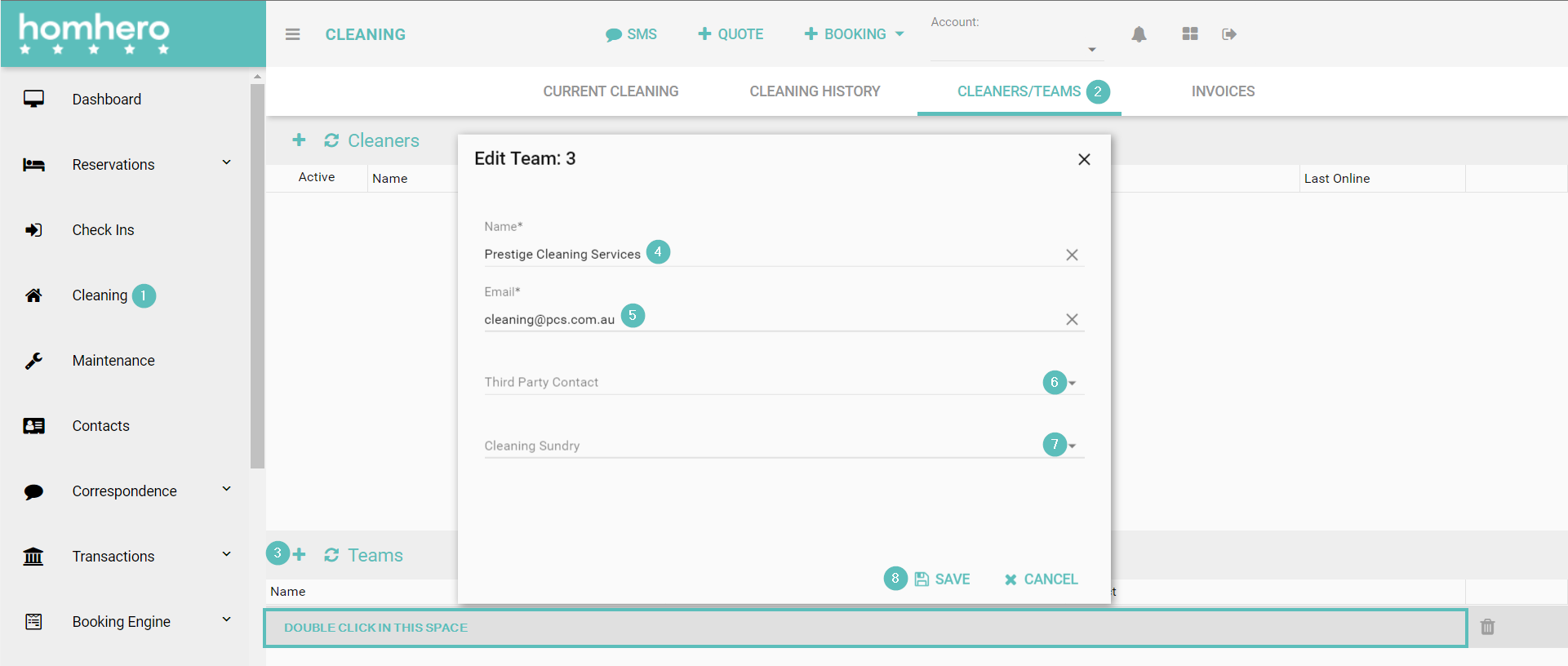
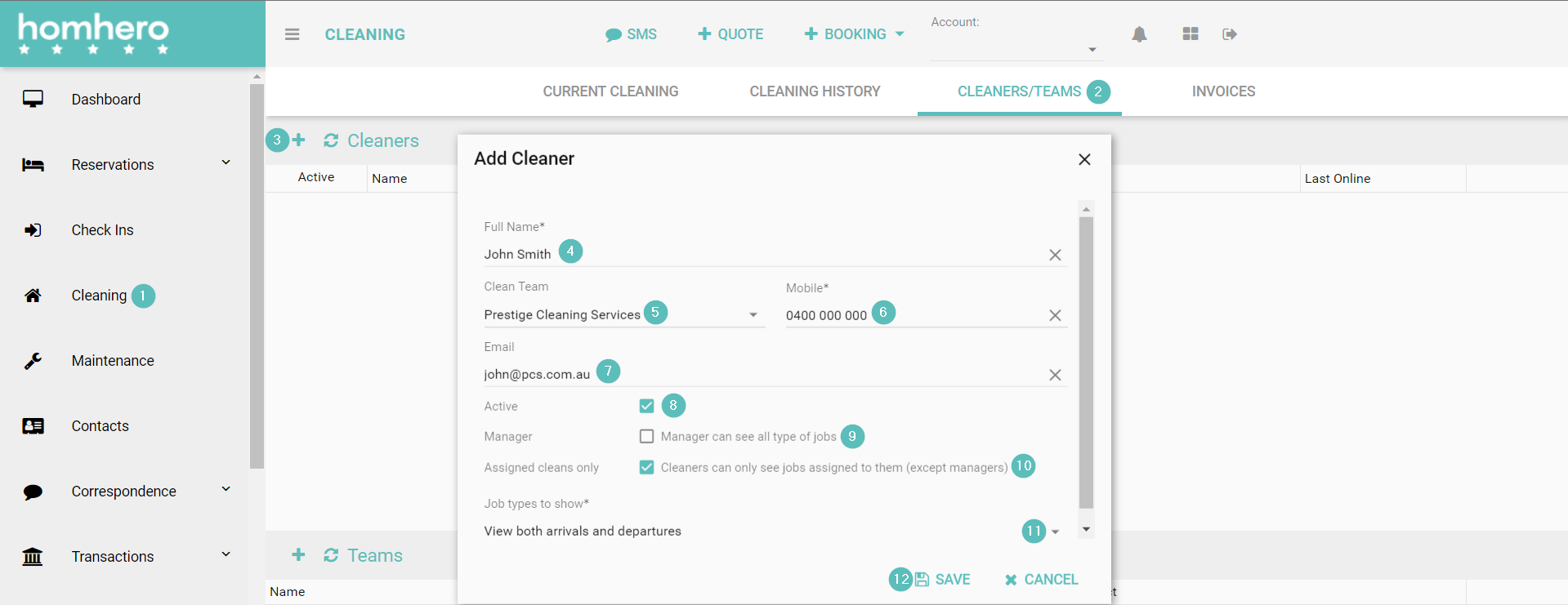
Adding a Cleaner
1. Click Cleaning from the HOMhero sidebar
2. Select the Cleaners/Teams tab
3. Click the + icon next to Cleaners which is located top left, a pop-up box will appear
4. Enter the Full Name of the cleaner
5. Use the drop-down arrow to select a Clean Team that this cleaner belongs to. This is optional however; this step is required if you want to use the invoicing feature for this cleaner
6. Enter the Mobile number of the cleaner
7. Enter the Email of the cleaner
8. Ensure the Active check box is ticked
9. If the cleaner is a manager tick the Manager check box, this will enable the cleaner to be able to view the cleaning tasks of their other team members
10. If you only want the cleaner to view their assigned cleans only, tick the Assigned cleans only check box
11. If the cleaner is not a manager and you would like to select what tasks the cleaner can view, click the drop-down arrow next to Job types to show, this will provide you the option of selecting arrivals, departures or both.
12. Click Save