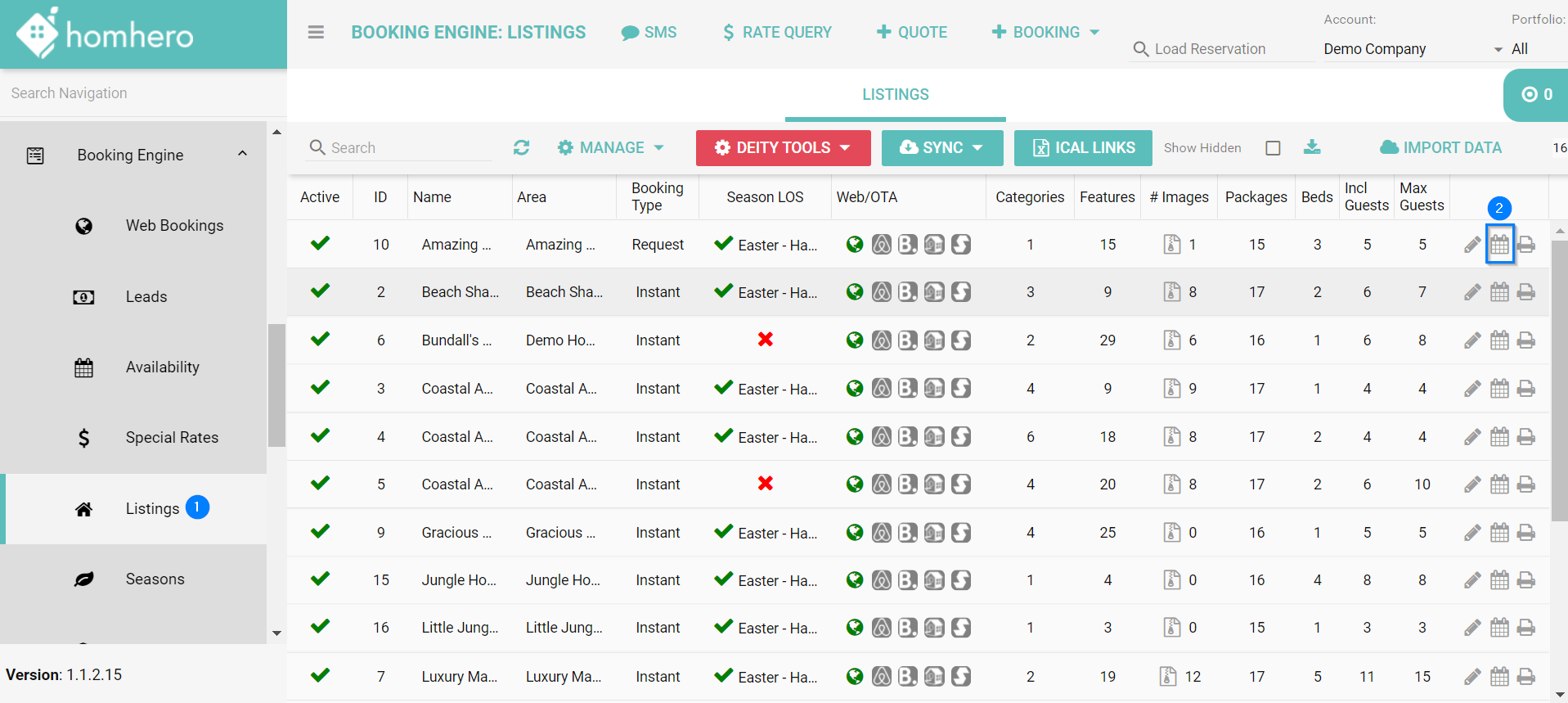
1. Click Booking Engine and then click Listings from the Homhero sidebar
2. Click the calendar icon next to a listing
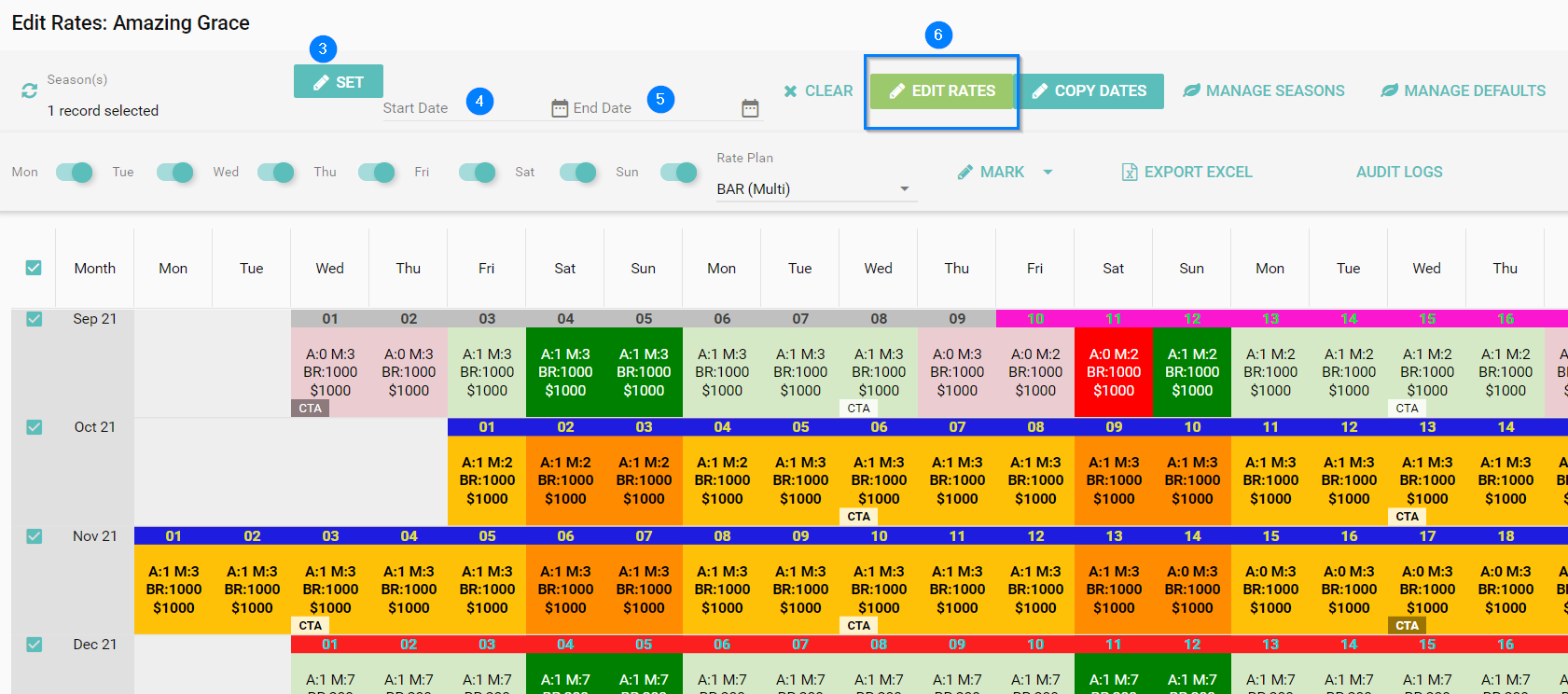
3. Click the Set button to open up the Season Selection pop up window. Select the first Season to assign a rate to from the Available column. Once the Season is selected, click the Move Left arrow to move this Season to the Selected column on the left, then click the Set button to finish the selection of this Season.
or
4. Use the calendar icon to select a Start Date
5. Use the calendar icon to select an End Date
Note: The date range that you have selected will appear highlighted in yellow and orange
6. Click Edit Rates
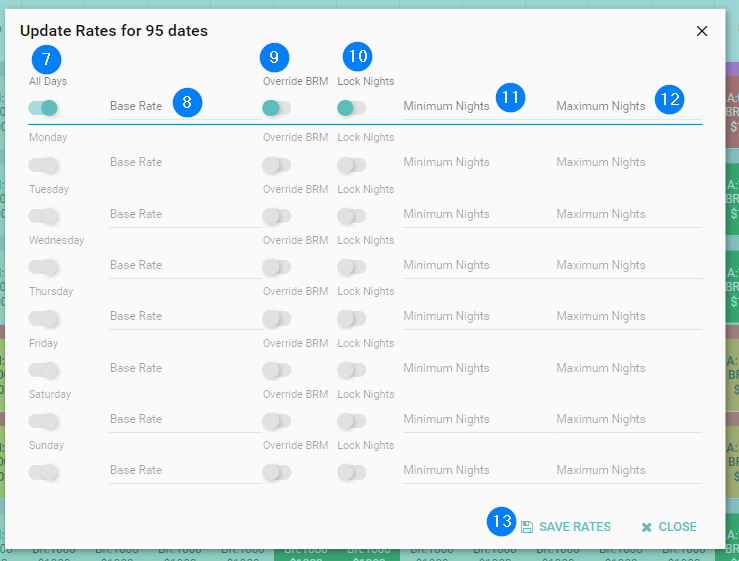
7. Untick the All days toggle if you wish to set different prices based on days of the week
8. Enter the nightly Base Rate, if you're using days of week pricing you will need to enter the base rate against each night
9. Click the Override BRM toggle if you want to override any BRM (Base Rate Multiplier %) that you have set
10. Click the Lock Nights if you would like to avoid any override or modification on minimum and maximum nights. When you have strict rules for min/max nights this is a helpful tool to avoid any modification on that because it will block modifications on min/max nights. If this toggle is on you can only modify the min/max nights if you make the toggle back off.
11. Enter the Minimum Nights for this rate if you want to override the minimum nights you have for this season.
12. Enter the Maximum Nights for this rate if you want to override the minimum nights you have for this season.
13. Click Save Rates
If you would like to copy these rates to other listings use the Copy Rates tool.
After any modification and updates on rates and restrictions Homehro highly recommends you to double check if it worked as expected. Please go back to the availability calendars to see if it looks correct or/and use the Rate Query tool to simulate the rates in different situations.