This article will explain how to change the booking status of a reservation in Homhero.
There are several ways to complete this process including via the Reservation Screen, Reservations List and the Dashboard. You do also have the ability to update several bookings in bulk to the next booking status, such as updating from Confirmed to Arrived or from Arrived to Departed. Please see instructions on this process further below.
Note: A booking status cannot be changed by skipping a status. For example you cannot change the status from Confirmed to Departed or from Unconfirmed to Arrived. You can only skip a booking status if you are cancelling the reservation.
RESERVATION SCREEN
The Reservation Screen is the easiest way to update the booking status of a single reservation.
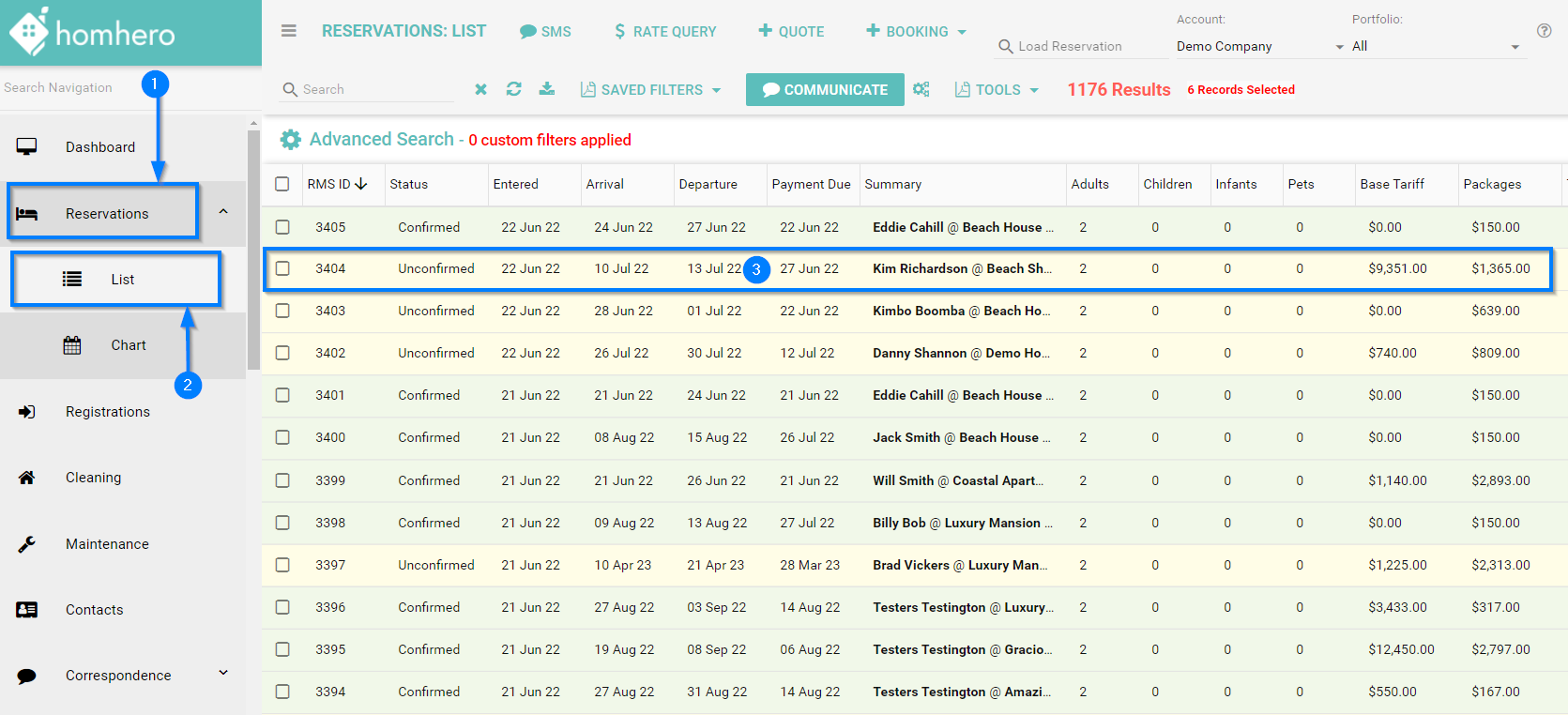
- Click Reservations from the Homhero side menu
- Then select List
- Double click on the reservation or click the edit pencil icon to open the reservation screen
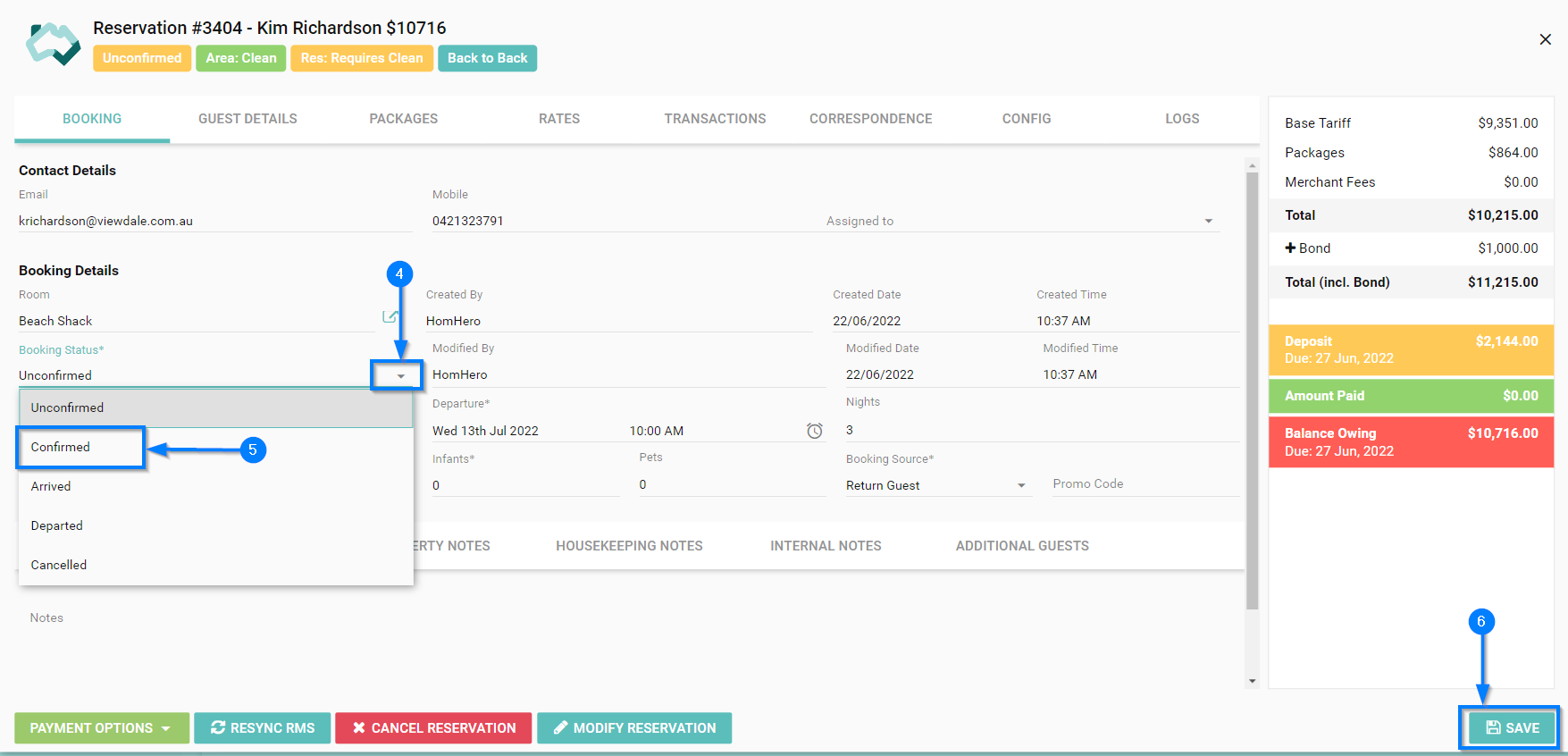
- Click the Booking Status drop-down
- Update the booking status to the next relevant option:
- Unconfirmed
- Confirmed
- Arrived
- Departed
- Cancelled
- Click Save
RESERVATION LIST - Bulk Update
In the Reservations List you can update the status of several bookings at the same time. This function will only change the booking status to the next available status in sequence. These options are below:
- Unconfirmed to Confirmed
- Confirmed to Arrived
- Arrived to Departed
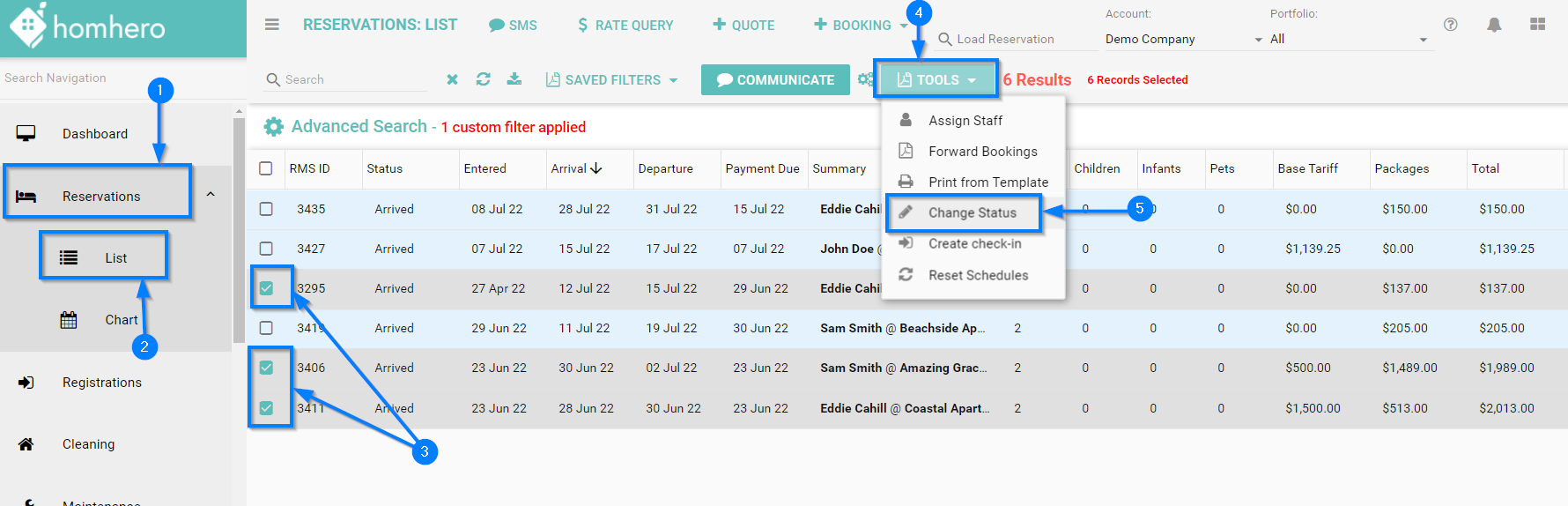
- Click Reservations from the Homhero side menu
- Then select List
- Select the reservations you would like to update the booking status for
- Click the Tools drop-down
- Select Change Status
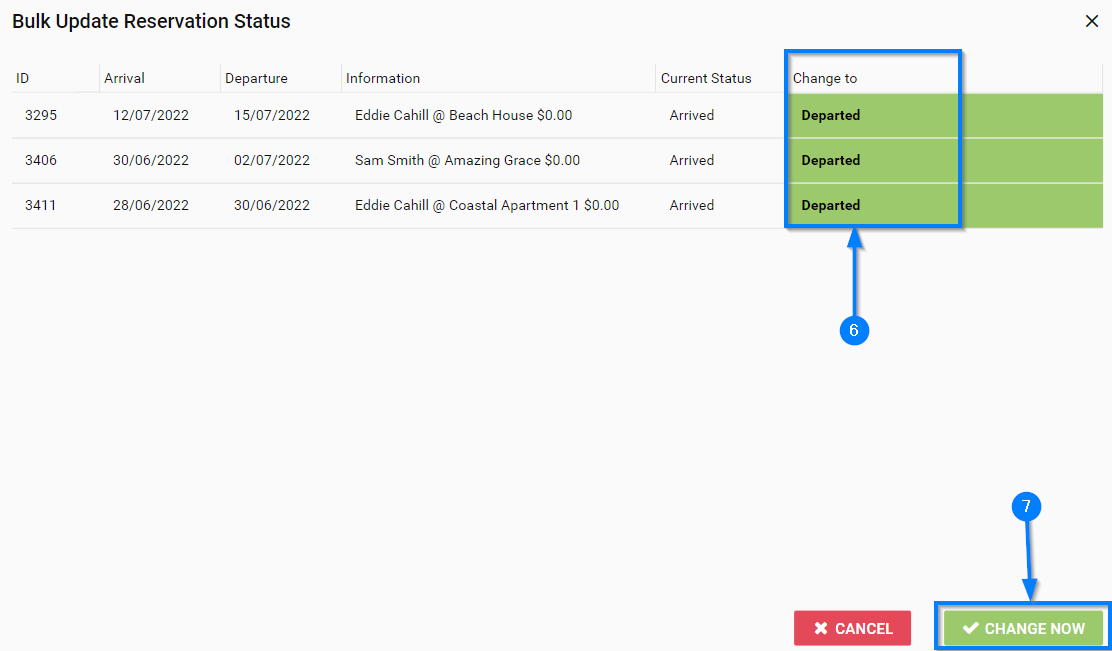
- Homhero will show you the Change To status for each booking
- Click the Change Now button to complete the process
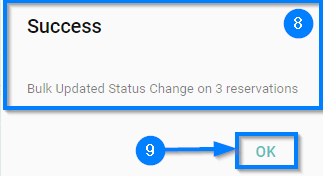
- You will receive a Success Notification
- Click OK
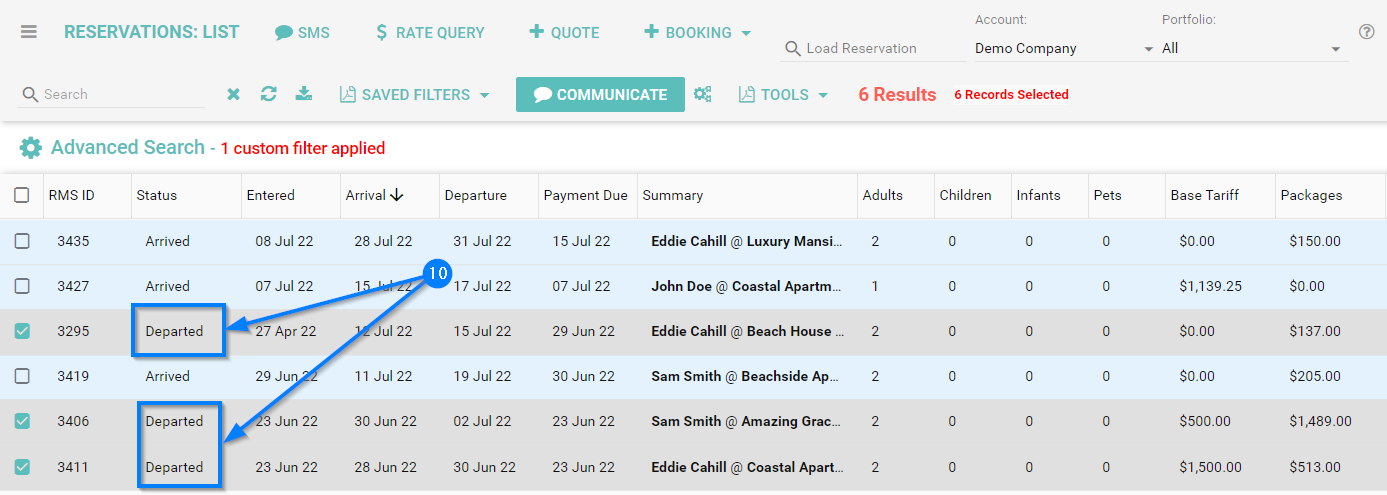
- If completed correctly, you will see the booking status updated for the selected reservations
DASHBOARD
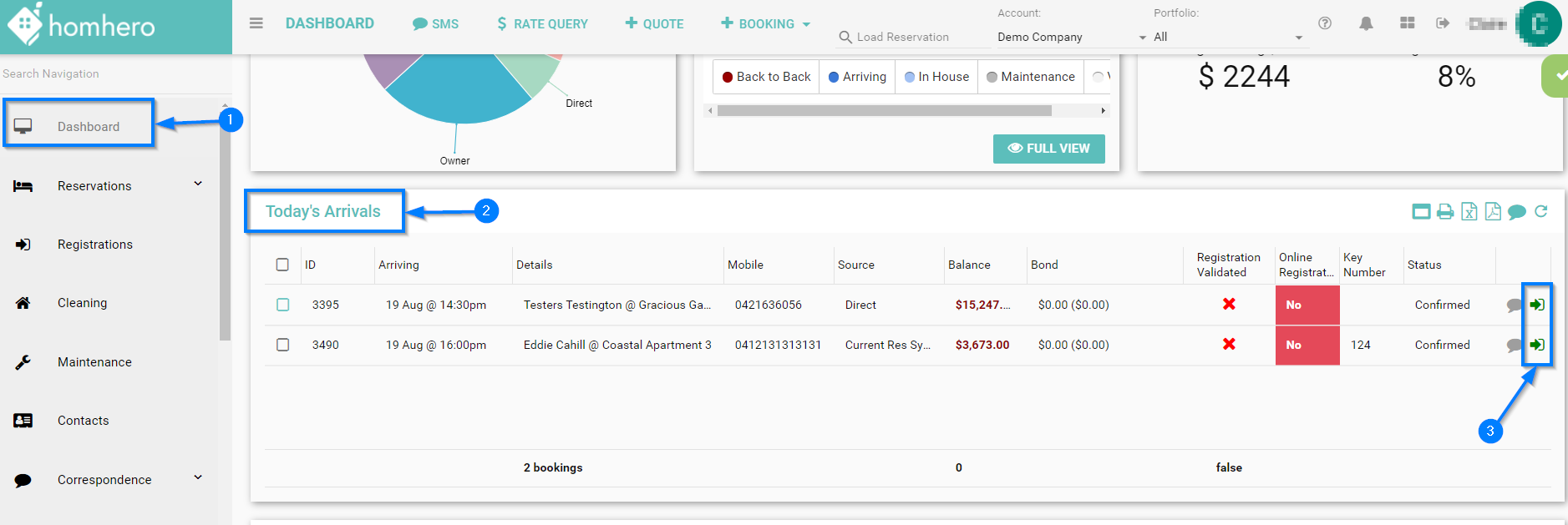
On the Dashboard you can update the status of arriving and departing bookings arriving each day. This function will only change the booking status to the next available status in sequence. These options are below:
- Confirmed to Arrived
- Arrived to Departed
- Click Dashboard from the Homhero side menu:
- Scroll to Today's Arrivals
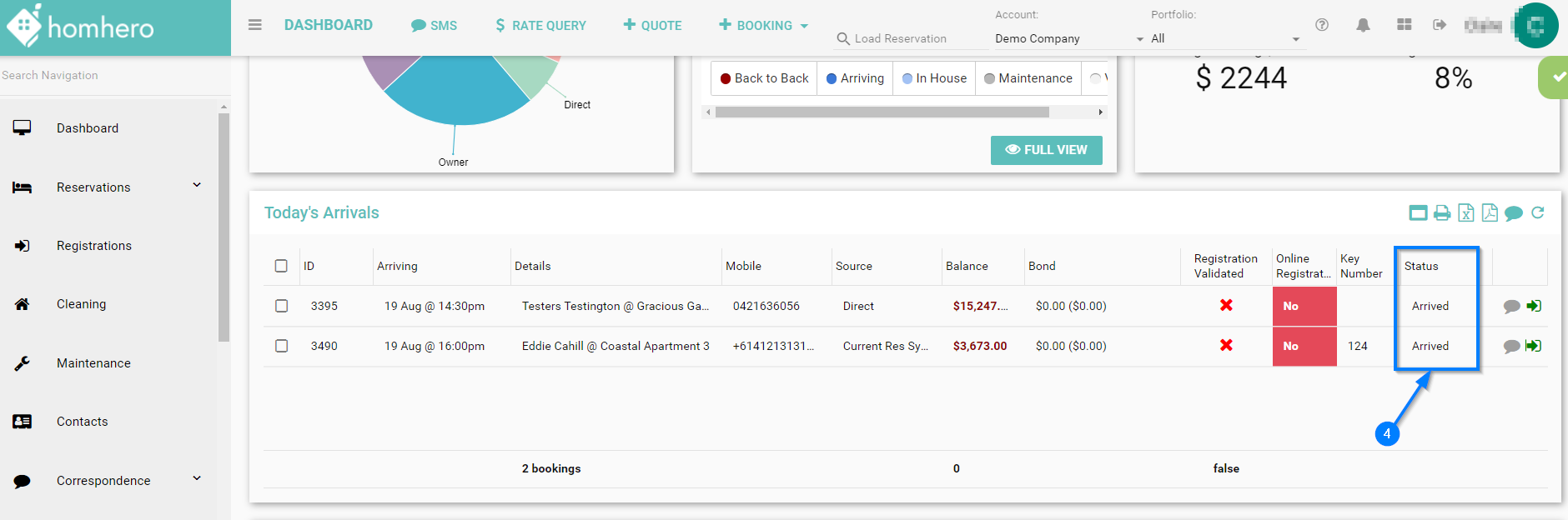
- Click the Green Arrow to change the booking status from Confirmed to Arrived
- Click the refresh icon to see the booking status now showing as Arrived