
This article will explain how to add an Owner Booking via the Create button and the Reservations Chart.
Owner bookings are usually created when Owners have decided to stay at their own Property. They can also be used for Owner Guest bookings or adding free Guest Bookings where no charge is applicable.
Add using CREATE button
Click the (+) Create > Owner Booking button at the top of your Homhero screen and follow the below steps:
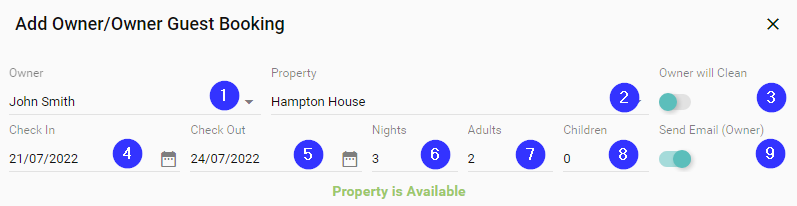
- Owner - Enter the Owners name
- Property - The Owners Property should auto-fill. Alternatively you can select the Property first which will populate the Owners name
- Owner will Clean - Turn this toggle on if the owner is cleaning their own property. Leave off if you would like the property manager to clean this Property
- Check In - Enter the arrival date
- Check Out - Enter the departure date
- Nights - Enter the amount of Nights
- Adults - Enter the amount of Adults
- Children - Enter the amount of Children
- Send Email (Owner) - Turn this toggle on if you would like to send a notification of this booking to the Owner
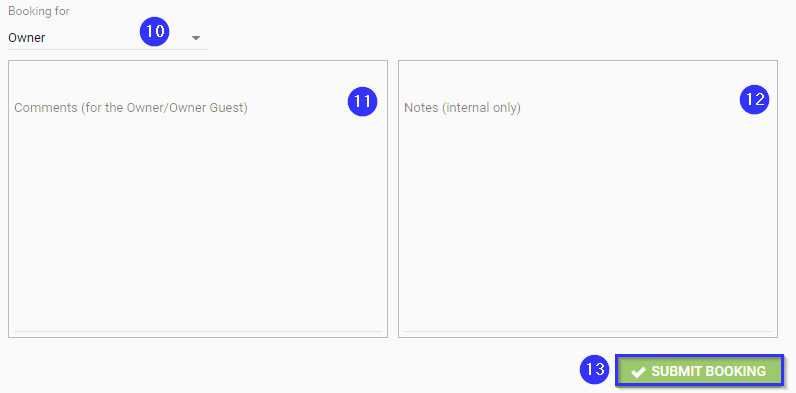
Add Owner Booking - Booking for - Select Owner
- Comments (for the Owner/Owner Guest) - Enter any Comments that you would like to send to the Owner
- Notes (Internal only) - Enter any internal notes for staff to view on the booking
- Submit Booking - Click Submit Booking to complete the Owner Booking
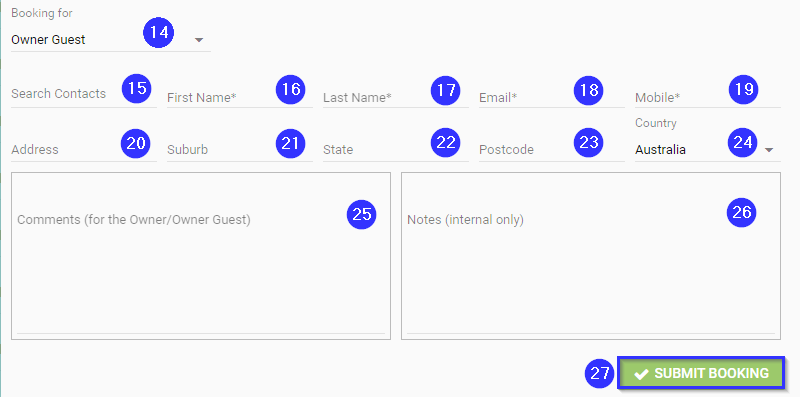
Add Owner Guest Booking - Booking for - Select Owner Guest
- Search Contacts - Enter Guest details to search for an Owner Guest that has stayed before
Note: Complete the following fields if the Owner Guest hasn't stayed before - First Name - Enter the First Name (this is a mandatory field)
- Last Name - Enter the Last Name (this is a mandatory field)
- Email - Enter the Email (this is a mandatory field)
- Mobile - Enter the Mobile (this is a mandatory field)
- Address - Enter the Address
- Suburb - Enter the Suburb
- State - Enter the State
- Postcode - Enter the Postcode
- Country - Enter the Country
- Comments (for the Owner/Owner Guest) - Enter any Comments that you would like to send to the Owner Guest
- Notes (Internal only) - Enter any internal notes for staff to view on the booking
- Submit Booking - Click Submit Booking to complete the Owner Guest Booking
Add via Reservations Chart
Owner bookings can now be created directly from the reservations chart.
In the main menu click Reservations List > Click & Drag along the dates to book > select Owner Booking and follow the below steps:
- Owner - Enter the Owners name
- Property - The Owners Property should auto-fill. Alternatively you can select the Property first which will populate the Owners name
- Owner will Clean - Turn this toggle on if the owner is cleaning their own property. Leave off if you would like the property manager to clean this Property
- Check In - Enter the arrival date
- Check Out - Enter the departure date
- Nights - Enter the amount of Nights
- Adults - Enter the amount of Adults
- Children - Enter the amount of Children
- Send Email (Owner) - Turn this toggle on if you would like to send a notification of this booking to the Owner
Add Owner Booking - Booking for - Select Owner
- Comments (for the Owner/Owner Guest) - Enter any Comments that you would like to send to the Owner
- Notes (Internal only) - Enter any internal notes for staff to view on the booking
- Submit Booking - Click Submit Booking to complete the Owner Booking
Add Owner Guest Booking - Booking for - Select Owner Guest
- Search Contacts - Enter Guest details to search for an Owner Guest that has stayed before
Note: Complete the following fields if the Owner Guest hasn't stayed before - First Name - Enter the First Name (this is a mandatory field)
- Last Name - Enter the Last Name (this is a mandatory field)
- Email - Enter the Email (this is a mandatory field)
- Mobile - Enter the Mobile (this is a mandatory field)
- Address - Enter the Address
- Suburb - Enter the Suburb
- State - Enter the State
- Postcode - Enter the Postcode
- Country - Enter the Country
- Comments (for the Owner/Owner Guest) - Enter any Comments that you would like to send to the Owner Guest
- Notes (Internal only) - Enter any internal notes for staff to view on the booking
- Submit Booking - Click Submit Booking to complete the Owner Guest Booking