You do have the ability to change the name on a booking in Homhero and RMS. This article will take you through the steps to change the guest name on a booking if there a multiple bookings with the same name. This includes Guest and Owner bookings.
IMPORTANT:
When there are multiple bookings under the same name e.g. John Smith, anytime you change the guest details on one of these reservations via Homhero or RMS, it will update all reservations that are booked under that name. This can have a negative impact on the way bookings will display if reservations have the wrong name attached to it.
You can change the guest name on a booking after it has been created, however this must be done through RMS as per the following steps:
Updating booking name to an EXISTING Guest
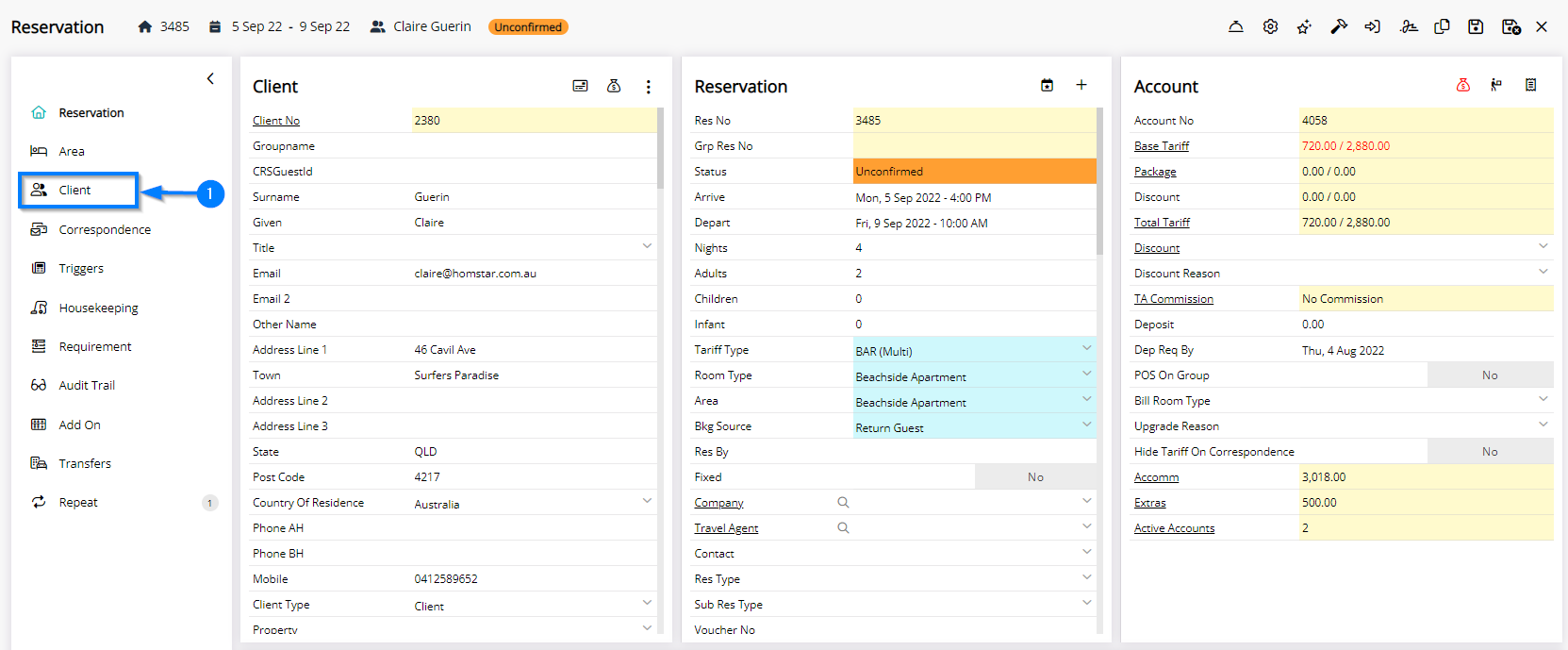
- Open the Reservation in RMS & select the Client tab
- Click the three little dots on the right
- Select Replace
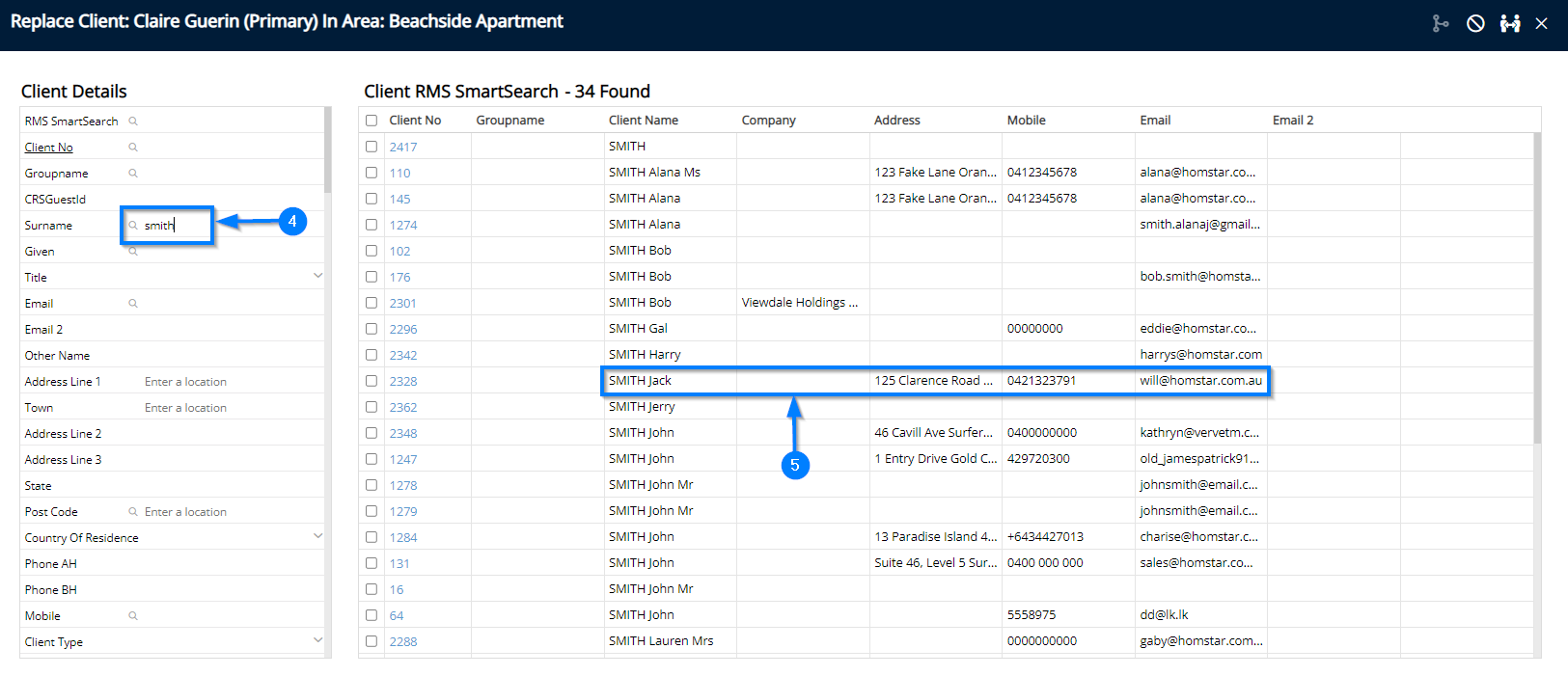
- Start typing the last name of the guest next to the Surname field locate it
- If the guest is EXISTING, a list will show up on the left. Double click on the correct guest name
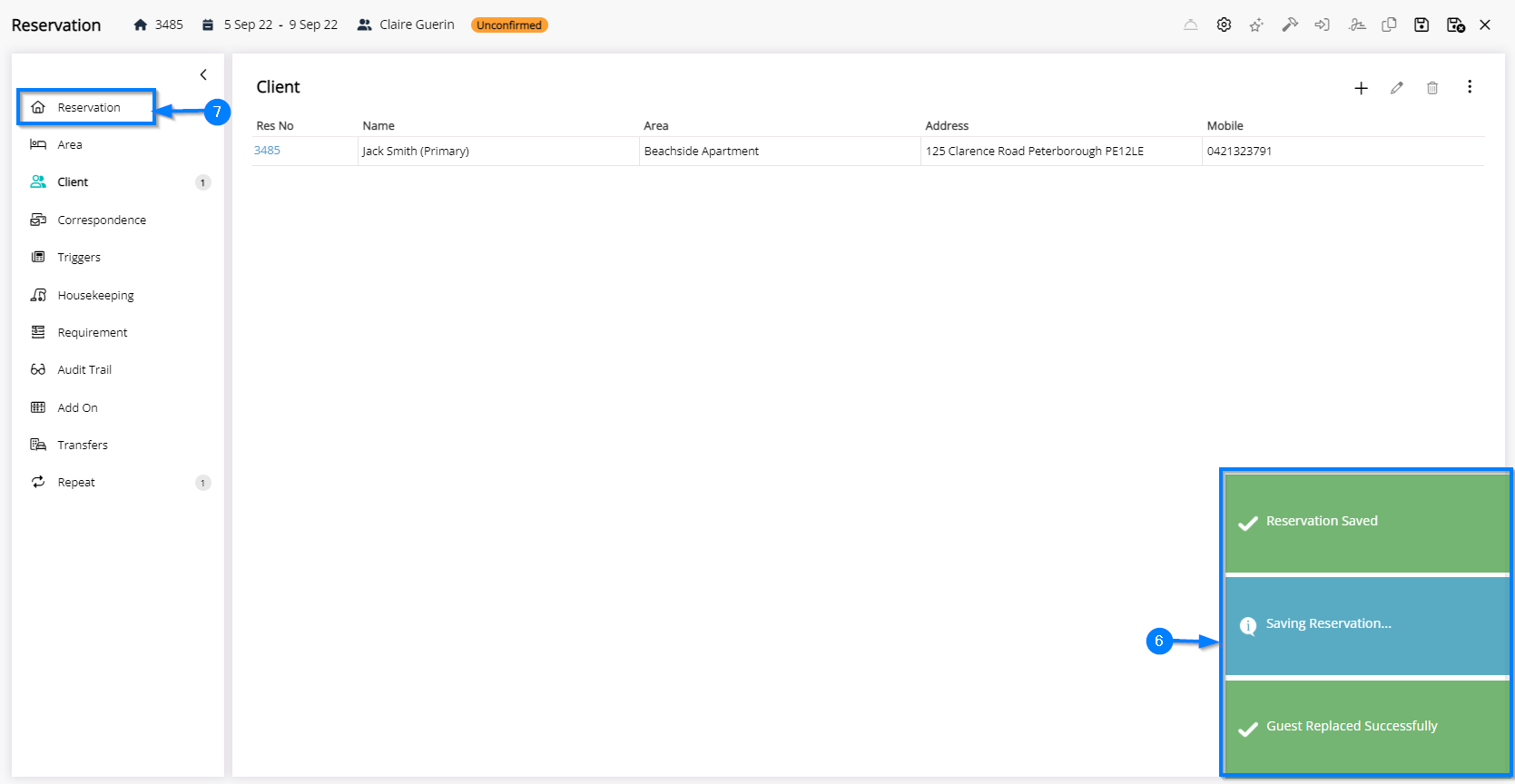
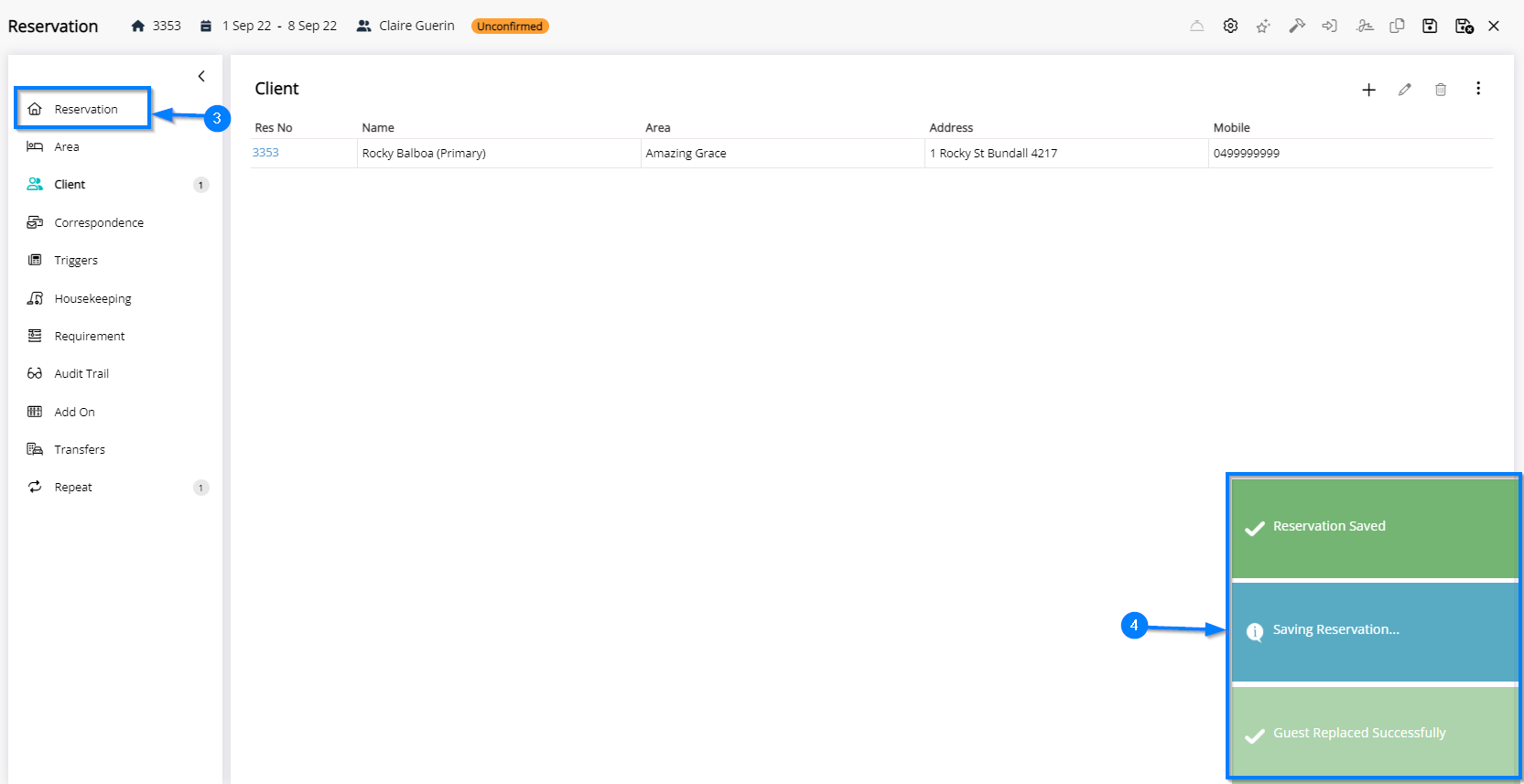
- You will see 3 notifications to confirm the change
- Select the Reservation tab
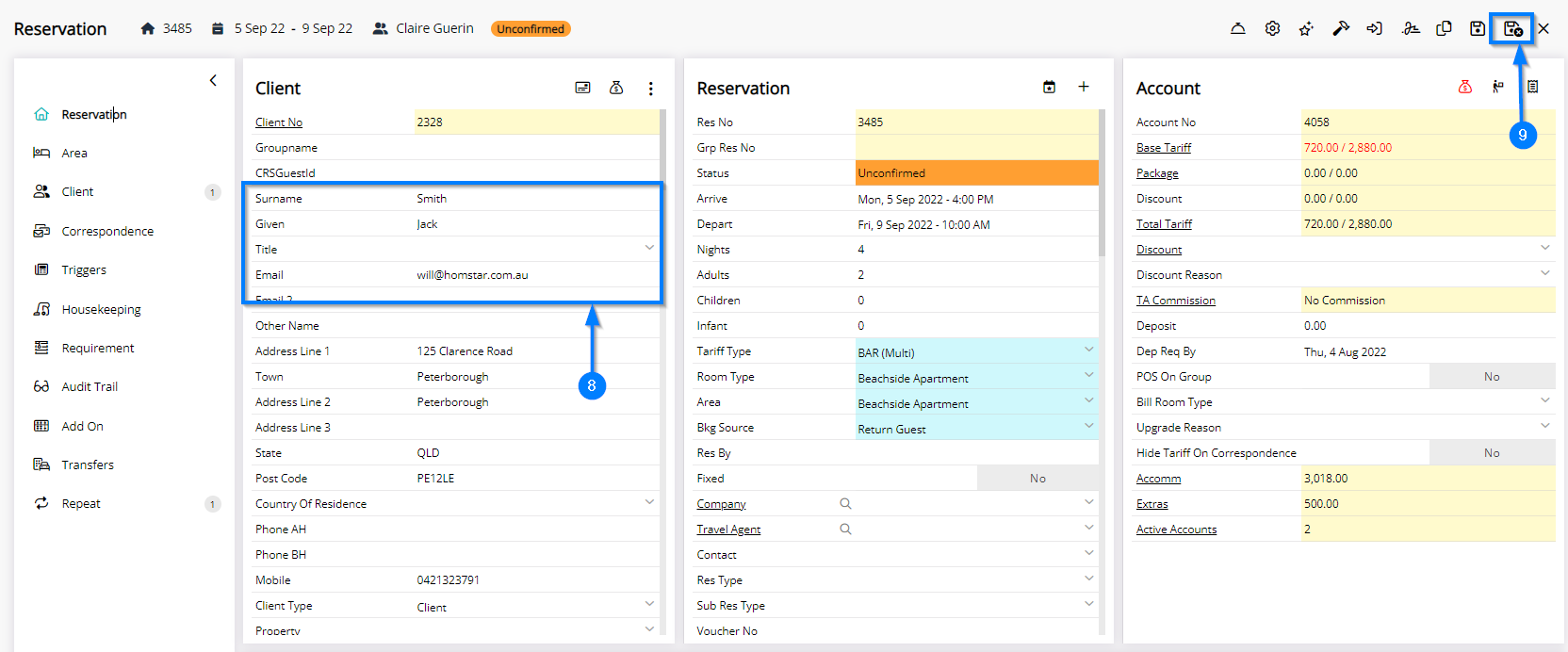
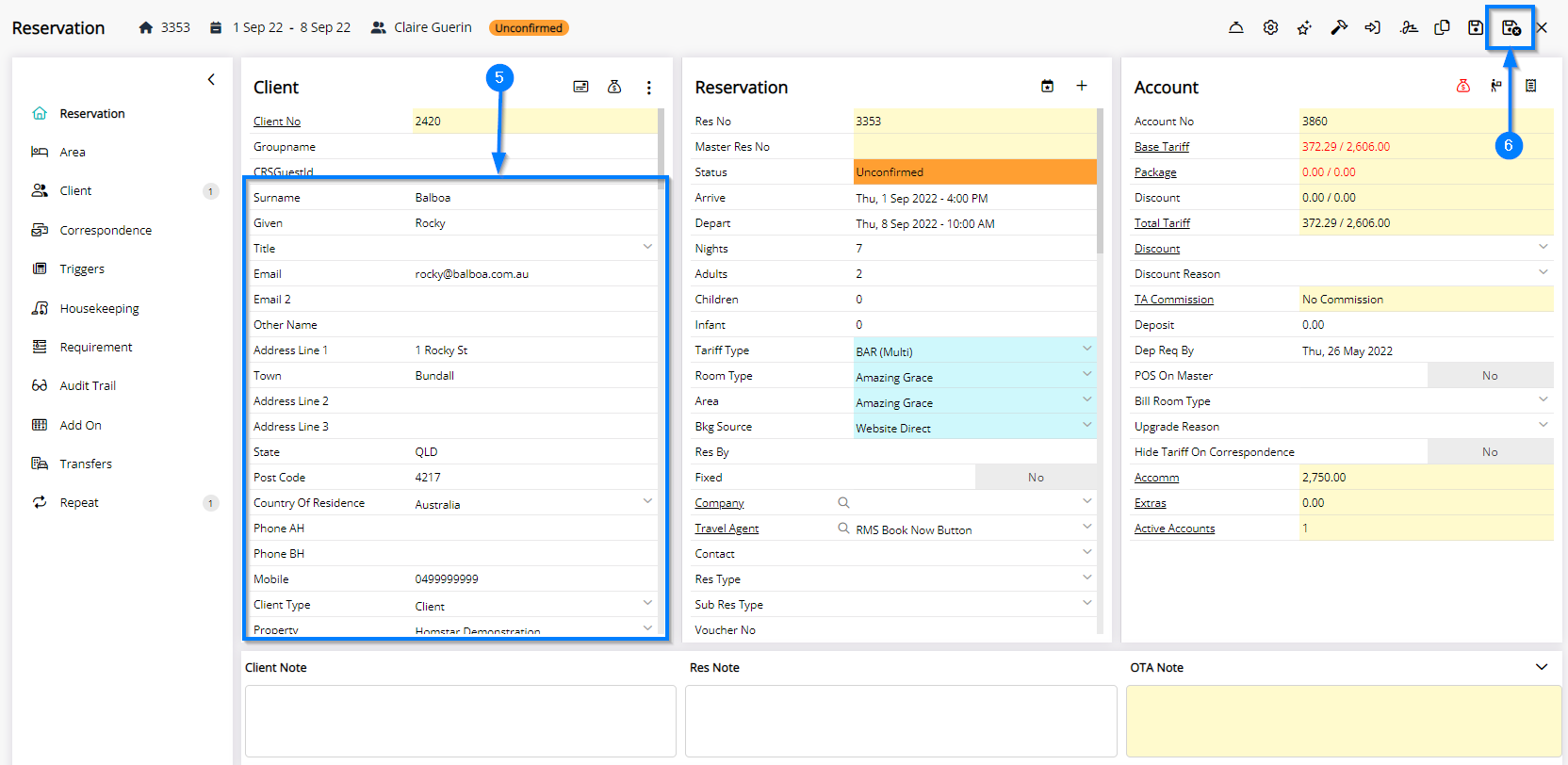
- Client details have now been updated on the booking
- Click Save/Exit once the Guest has been replaced

Updating booking name to a NEW Guest
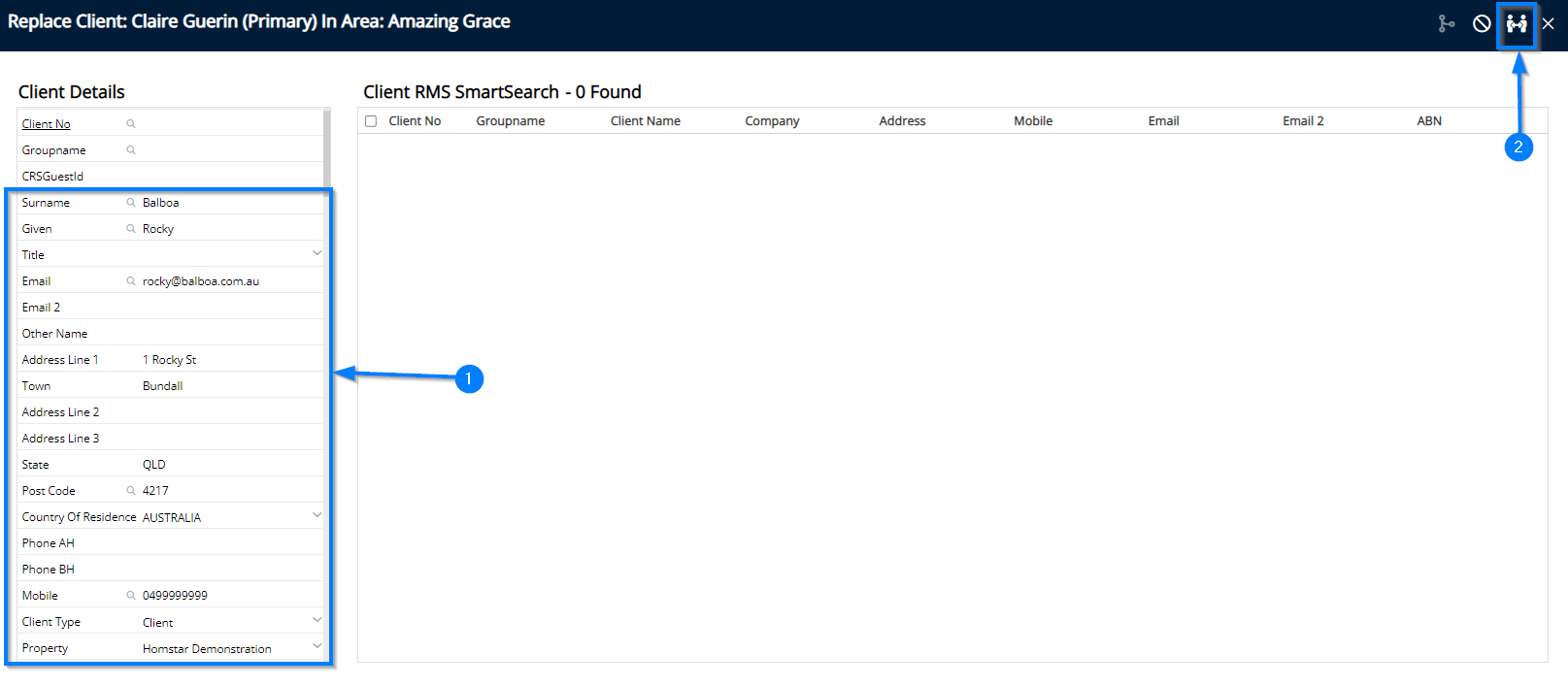
- If the guest is NEW - fill in all the below required fields with the guest information
- Click the Replace/Exit button
- You will see 3 notifications to confirm the change
- Select Reservation
- Client details have now been updated on the booking
- Click Save/Exit once the Guest has been replaced
Syncing your name changes to Homhero
Once you have updated the guest name on a booking in RMS, please follow the below steps:
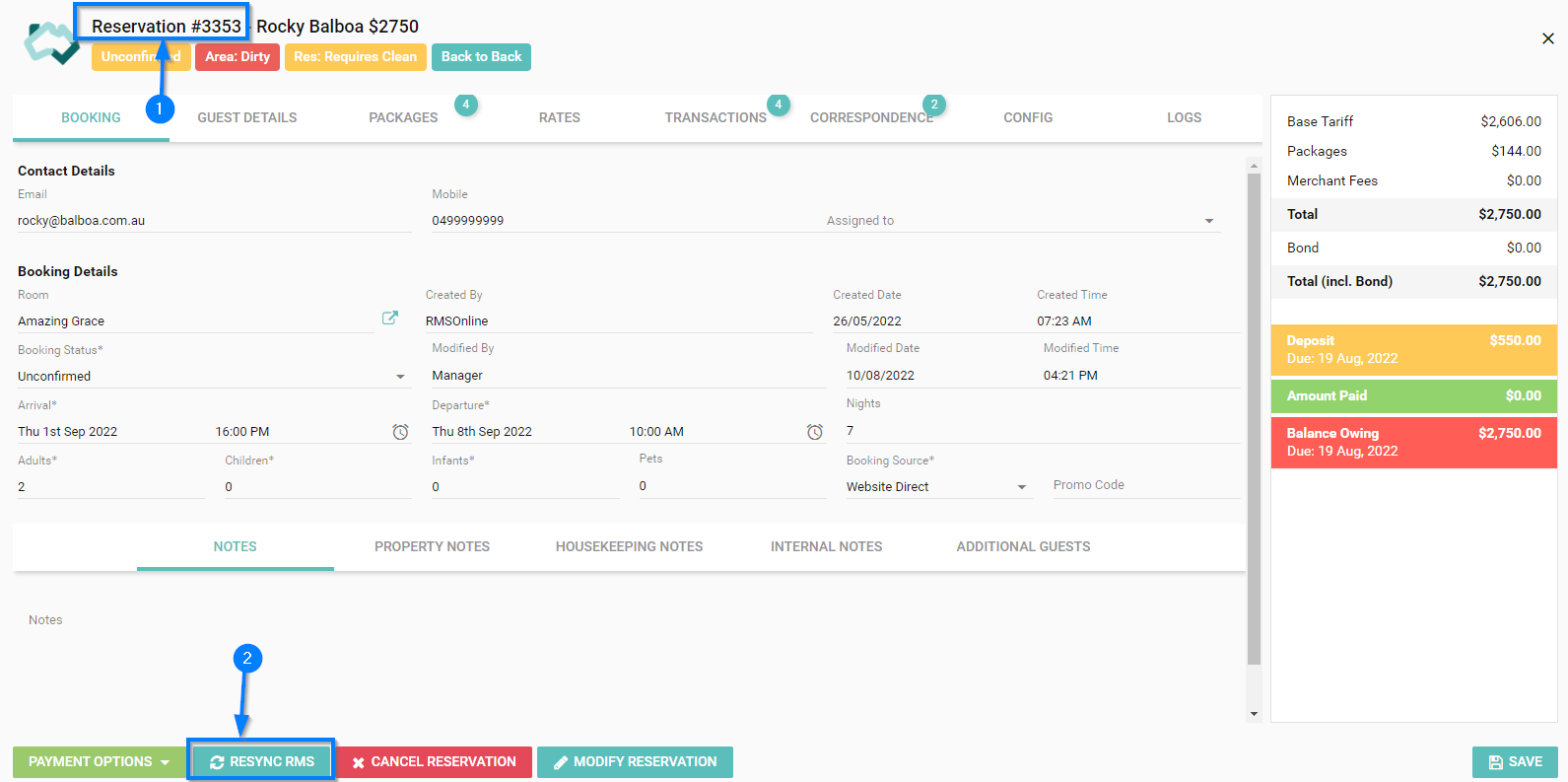
- Open the reservation screen for this booking
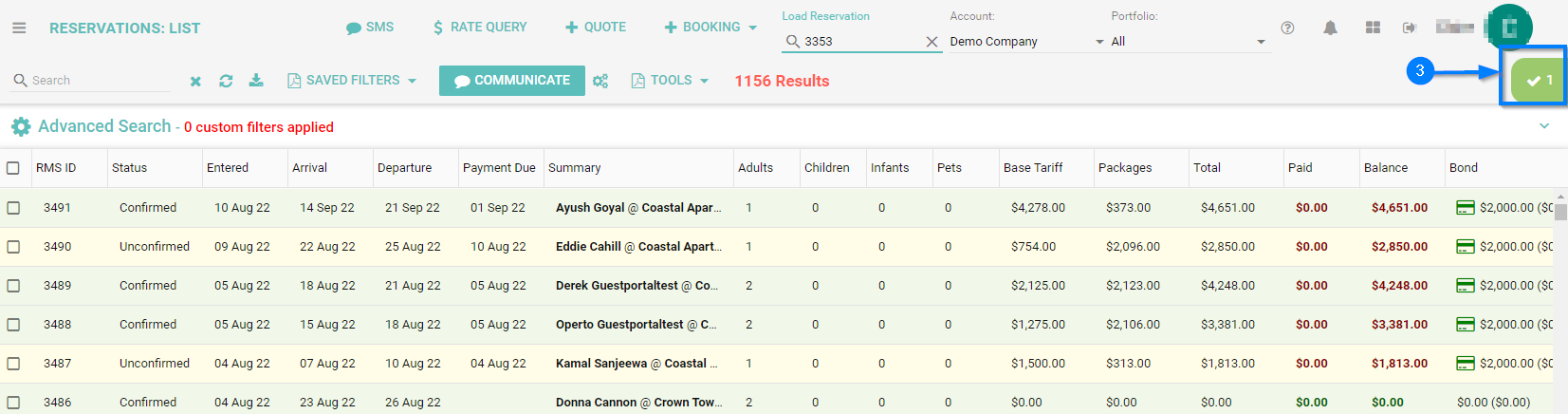
- If the guest name has not updated then click the RESYNC RMS button
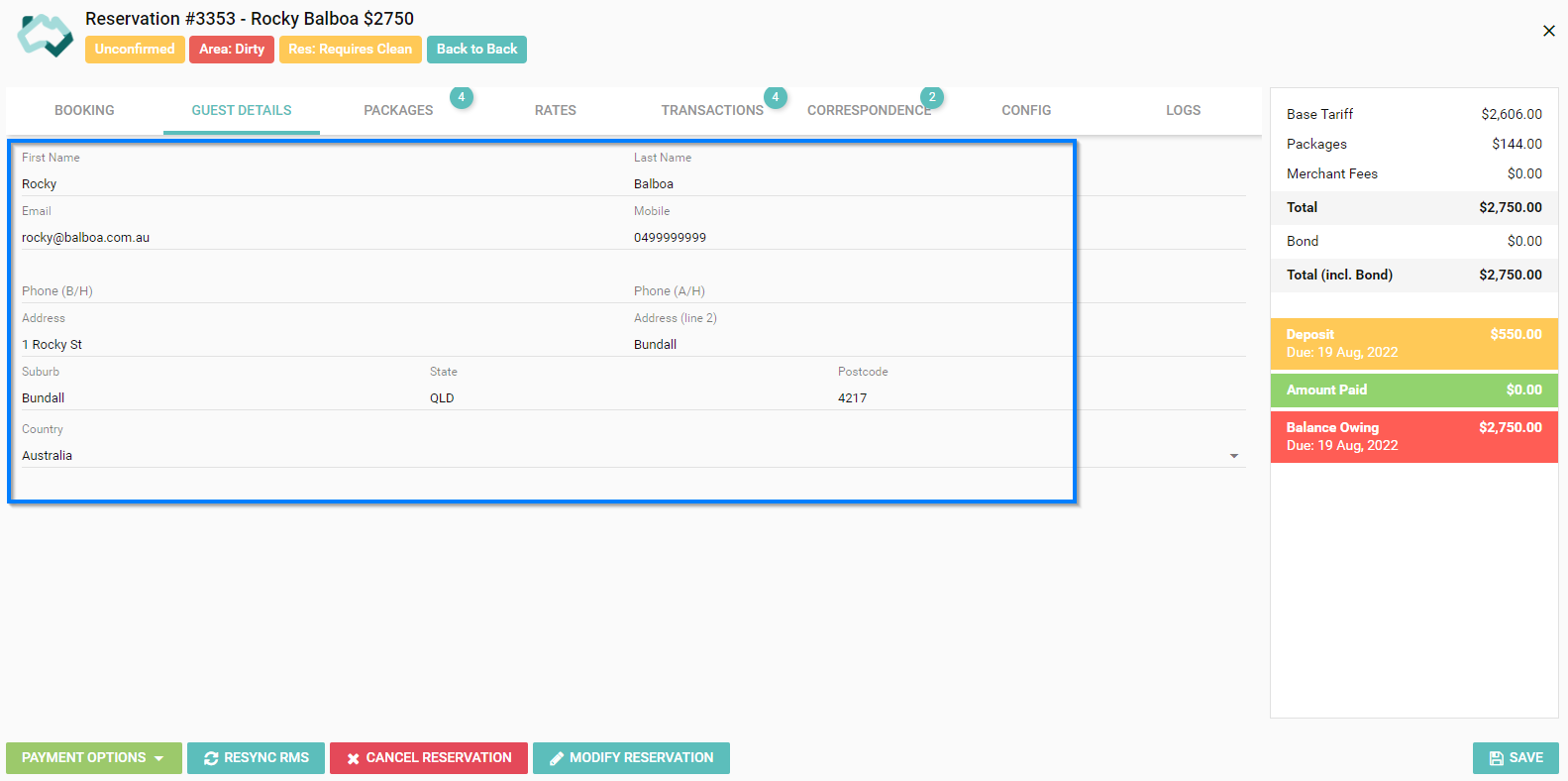
- Once you receive the Green Tick then re-open the reservation screen to see the updated guest details