
This article will explain how to change the name and slug for any listings that are available on your website.
Please follow the below steps:
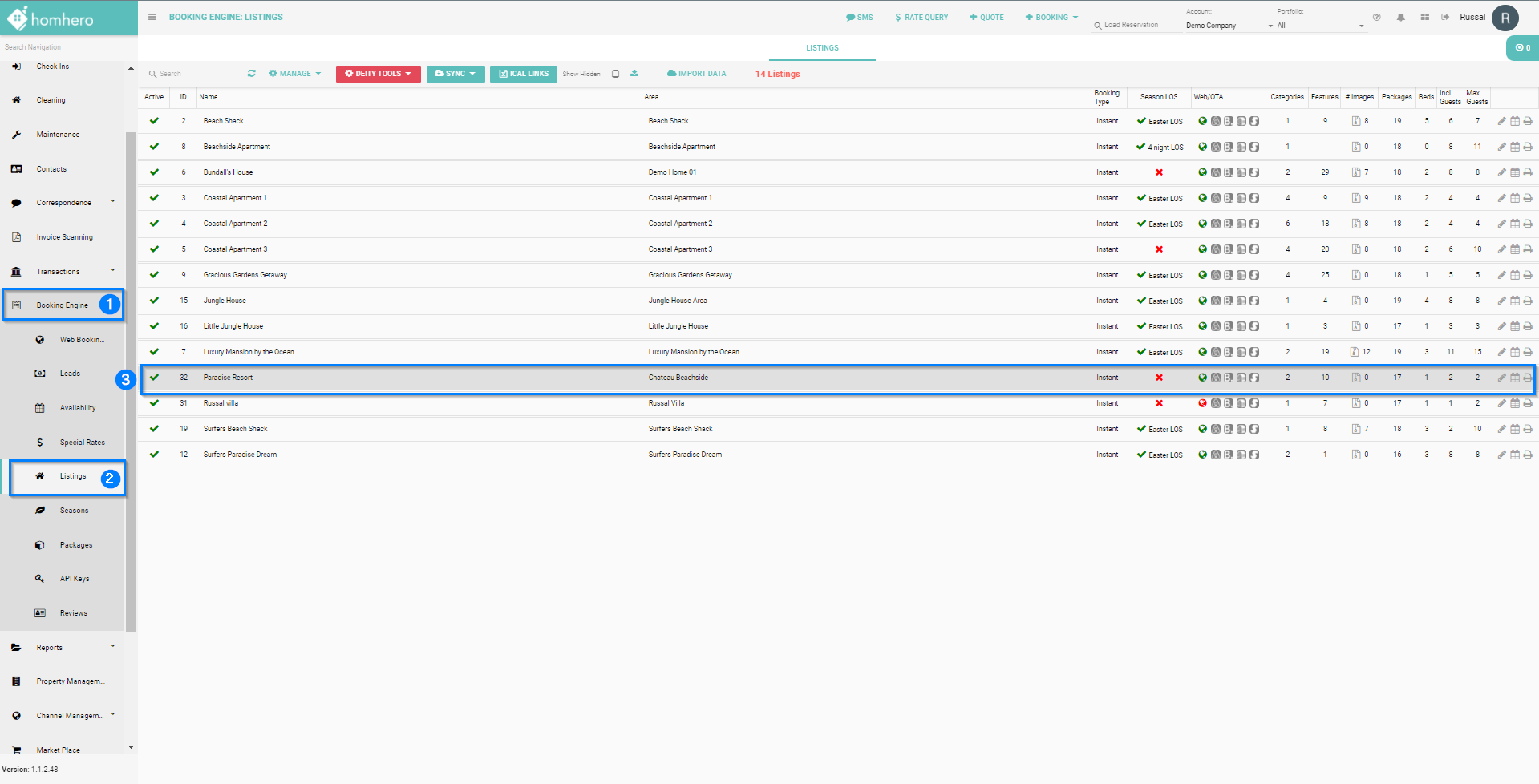
- Click on the Booking Engine from the Homhero side menu
- Click on Listings
- Double click on the Listing
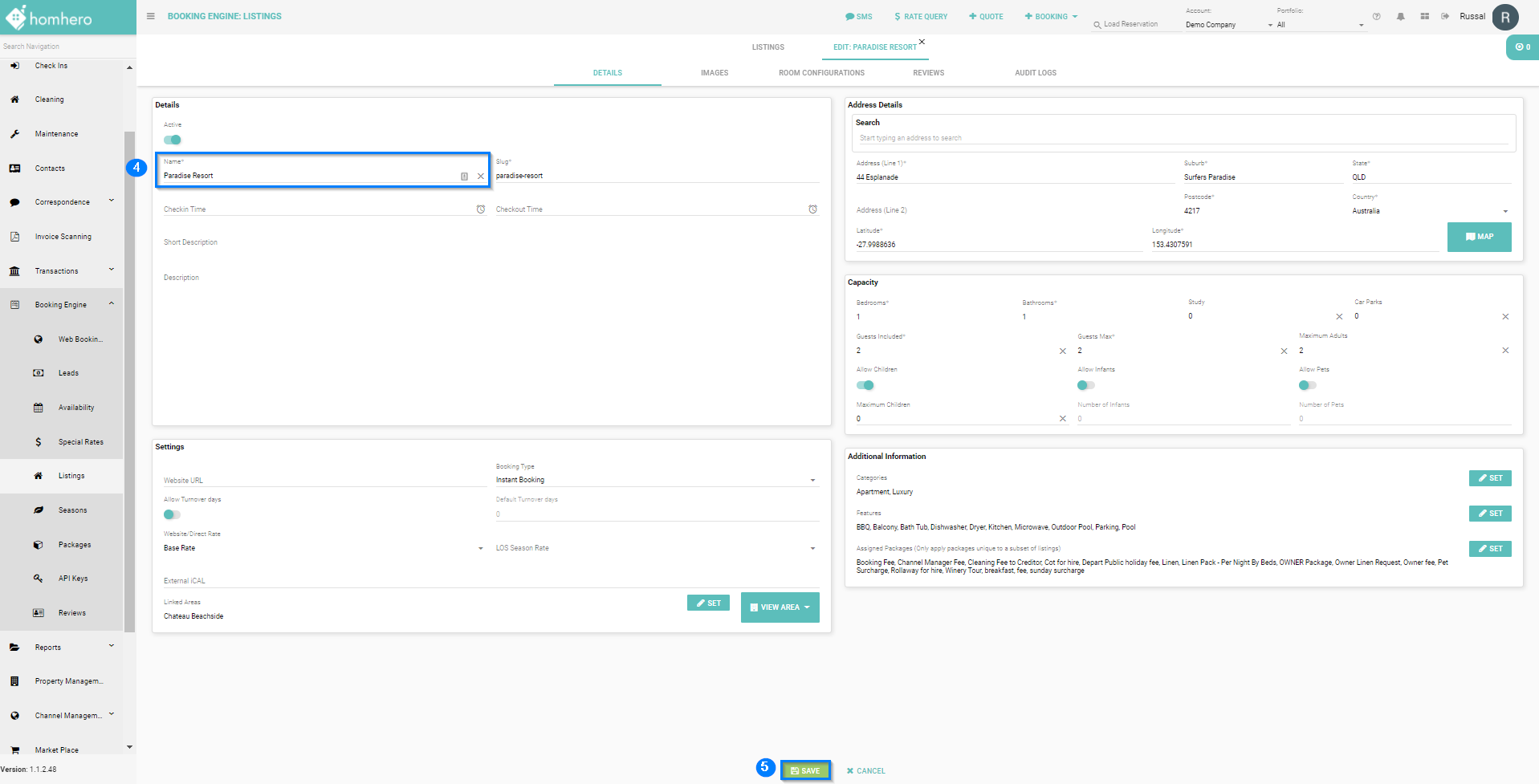
- In the next window under name field, Edit the name of the listing
- Click Save
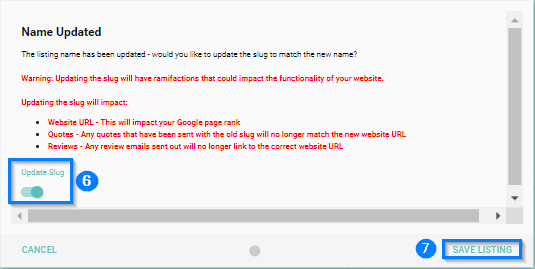
- Upon clicking Save, you should receive a prompt to update the slug. By default this is turned off.
Turn the 'Update Slug' toggle on only if required, otherwise leave it unchecked.
PLEASE NOTE: Updating the listing slug once the listing is already active can have several negative effects, which are outlined in red in this pop-up window. You should only do this when absolutely necessary (listing name change, spelling mistake) and inform your website developer that the website URL of this listing has changed. - Click Save Listing
- To update the listing name on your website, you will need to login to WordPress and click Sync Listings. Alternatively, please contact Homhero Support for assistance with this step
If your website is managed by a 3rd Party, then please reach out to your web development team if the listing name does not update automatically.
If you need to change the listing name in all areas of RMS and Homhero, please click on the following article - How to change the name of a Property
Comments
0 comments
Please sign in to leave a comment.